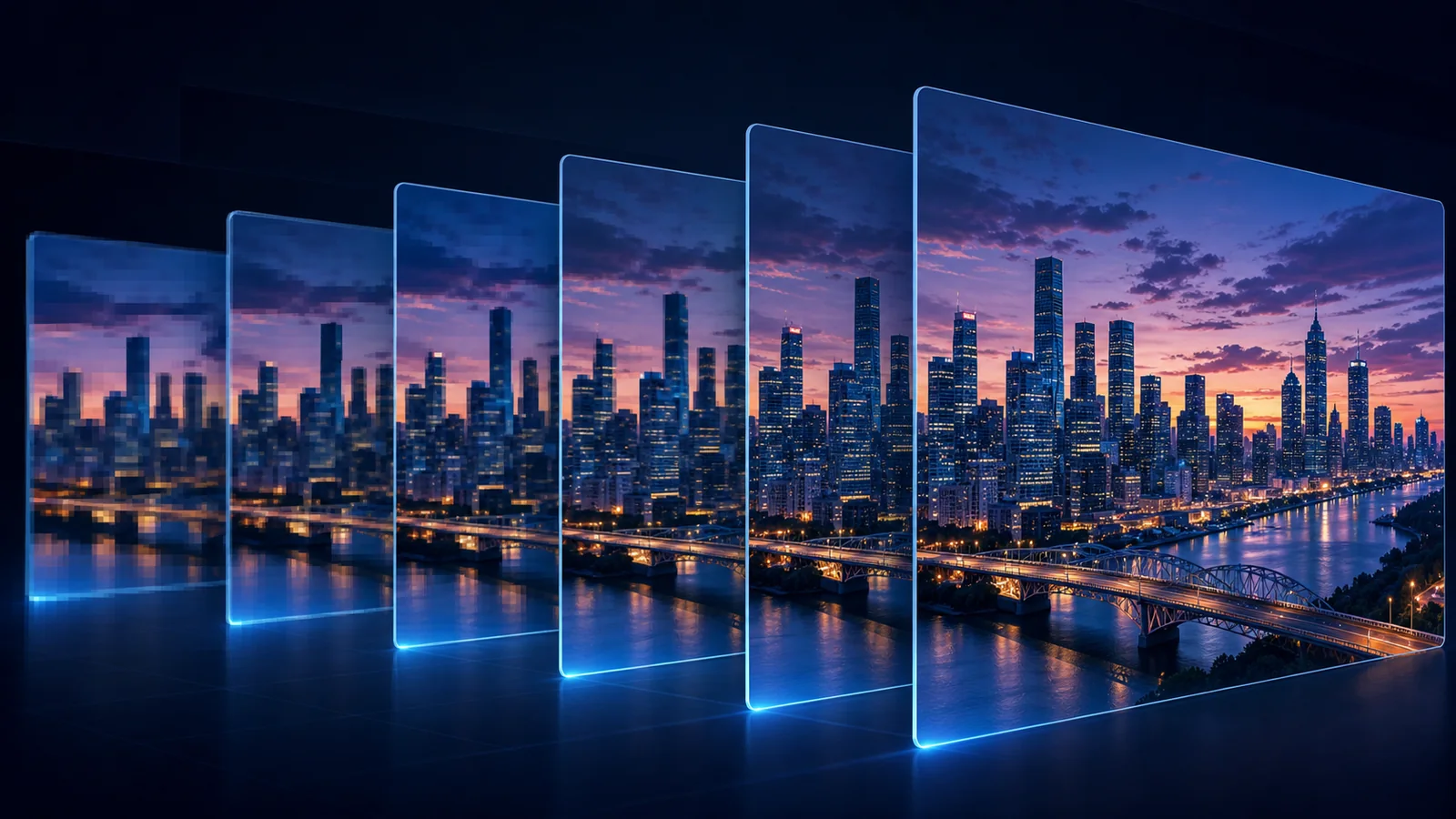
If you are trying to learn how to fix pixelated video, begin with the cause rather than a sharpening slider. A low-resolution source, a low-bitrate export, a poor stream, and a damaged file can all look “pixelated,” but they do not need the same repair. Applying aggressive enhancement before diagnosing the source often turns square blocks into hard halos or invents texture that changes from frame to frame.
The practical goal is not to reconstruct information that no longer exists. It is to reduce distracting artifacts, enlarge the useful detail coherently, and preserve faces, edges, motion, and the overall identity of the source. This guide shows how to diagnose the problem, prepare a clean input, test SeedVR2, and decide whether 1080p, 2K, or 4K is the most believable result.
Quick answer: how to fix pixelated video
To fix a pixelated video without making it look artificial:
- Find the least-compressed original file.
- Confirm whether the problem is low resolution, compression blocks, blur, or corruption.
- Keep the original frame rate and avoid another lossy export before restoration.
- Cut a five-to-ten-second test containing faces, motion, text, and fine texture.
- Process that test with a video-aware AI restoration model.
- Compare 1080p, 2K, and 4K at the same viewing size.
- Approve the result in motion, not from one paused frame.
- Export delivery copies only once from the restored master.
AI restoration can make pixelated footage more usable, but it predicts plausible detail rather than recovering a perfect hidden original. If the source contains severe corruption, censoring, missing frames, or an unrecognizable face, upscaling cannot reliably restore the missing truth.
Diagnose why the video looks pixelated
Before deciding how to fix pixelated video, pause on several frames and watch the same section at normal speed. Look for the pattern of the defect.
| What you see | Likely cause | Best first action |
|---|---|---|
| Large square pixels on every edge | Low native resolution or a tiny source enlarged by the player | Start from the original and test a moderate upscale |
| Moving rectangular blocks in dark or fast scenes | Low bitrate or repeated compression | Find a less-compressed export before restoration |
| Soft detail without obvious squares | Defocus, motion blur, denoising, or camera shake | Use conservative restoration; resolution alone is not the issue |
| Broken colors, frozen areas, missing frames, or playback errors | File or stream corruption | Repair or re-download the file before upscaling |
| A deliberate mosaic over a face or object | Privacy censoring | Do not treat upscaling as a way to recover concealed identity |
Low resolution
A 360p or 480p clip contains too few samples for a modern large display. When the player stretches it, diagonals become stair-stepped and curved edges break into visible squares. This is the clearest case for super-resolution, especially when the original is otherwise clean.
Compression blocks
Codecs divide video into regions and discard information to reduce file size. At a very low bitrate, blocks appear around movement, smoke, water, gradients, hair, and dark areas. Repeated exports make them worse. A restoration model may soften or reinterpret those blocks, but a clean original always gives it a better starting point.
Blur mistaken for pixelation
Motion blur, missed focus, strong denoising, and lens softness do not create the same grid-like pattern as low resolution. Sharpening can increase local contrast, but it cannot recreate an exact license plate, distant face, or small sign that the camera never recorded. If your source is mainly soft rather than blocky, see the separate guide on how to fix blurry photos for the same evidence-versus-invention principle.
Corruption is a different problem
If a video will not decode, jumps over missing frames, or displays large solid-color regions, repair the container or acquire the file again first. A super-resolution model expects readable frames. It is not a substitute for file recovery software.
Get the best source before using AI
The most important step in how to fix pixelated video is often finding a better input. Check the camera card, editing project, cloud backup, original message attachment, or export archive before processing a social-media copy.
Use this source order when several versions exist:
- camera original or original generated file;
- editing master or high-bitrate export;
- direct cloud download;
- messaging-app attachment;
- social-platform download;
- screen recording of a player.
Every generation below the original may include new resizing and compression. Upscaling the smallest copy cannot reproduce details that still exist in a better master.
Do not enlarge the file before restoration
Changing a 480p file to 1080p with ordinary resizing only creates more interpolated pixels. It also hides the true input dimensions from your workflow. Upload the original resolution and let the restoration process perform the enlargement once.
Preserve the original frame rate
Resolution enhancement and frame interpolation solve different problems. Keep 24, 25, 30, or 60 fps unchanged during the first test. Adding frames while also reconstructing detail makes it harder to identify where artifacts were introduced.
Make a representative stress test
Choose five to ten seconds that include the hardest content, not the cleanest shot. Good tests contain:
- a face turning or moving toward the camera;
- hair, foliage, fabric, rain, smoke, or water;
- a pan, zoom, or fast subject;
- thin lines, railings, windows, or repeated patterns;
- small text, logos, or interface elements;
- both bright and dark regions.
If a difficult test remains stable, the full clip is a much safer use of processing time and credits.
How to fix pixelated video with SeedVR2
The SeedVR2 online video upscaler provides a browser workflow for video restoration without installing a local GPU environment. The official SeedVR repository describes restoration for real-world and AIGC content, while the SeedVR2 paper presents a one-step approach to high-resolution video restoration.
1. Upload the cleanest available file
Open the tool in video mode and upload the original MP4, WebM, MOV, AVI, or MKV file. If the full source is long, use the stress-test segment first. Keep the untouched original in a separate folder so you can return to it.
2. Choose a realistic output target
The current workflow offers 720p, 1080p, 2K, and 4K targets. The best target depends on the source and delivery use.
| Source condition | First target to compare | Why |
|---|---|---|
| Very compressed 240p–360p | 720p, then 1080p | A large jump can emphasize invented texture |
| Reasonably clean 480p | 1080p | Usually enough to test whether edges become coherent |
| Clean 720p | 1080p or 2K | Useful for web, editing, and moderate crops |
| Clean 1080p | 2K or 4K | More appropriate for a 4K timeline or large display |
When learning how to fix pixelated video, do not assume that the maximum number wins. A natural 1080p file is better than a crunchy 4K file whose faces and textures no longer match the source.
3. Review the credit estimate
Longer videos and larger target resolutions require more processing. Check the estimate before starting. If you need to compare two targets, use the short stress test rather than running the entire source twice. The pricing page explains current credit usage.
4. Select an output format
MP4 is the practical default for editing, playback, and publishing. MOV may fit an existing post-production pipeline, and WebM is useful for some web delivery. GIF is suitable for short loops, not as a high-quality restored master.
5. Process, then compare fairly
Display the original and output at the same physical size. If the 4K version fills the screen while the source sits in a small player, the comparison exaggerates flaws in the larger file.
Watch at normal speed, then inspect several frames at 100%. Check:
- whether eyes, facial structure, and skin texture stay consistent;
- whether block boundaries have been reduced without waxy smoothing;
- whether hair, leaves, and fabric remain attached to moving surfaces;
- whether straight lines stay straight during camera motion;
- whether small text becomes merely sharper gibberish;
- whether halos appear around buildings, shoulders, or high-contrast edges.
6. Keep the most believable result
If 4K adds unstable pores, crawling bricks, or hard edge outlines, keep the 2K or 1080p version. The correct answer to how to fix pixelated video is the version that improves useful clarity while changing the source least.
What AI can and cannot recover
AI super-resolution uses learned visual patterns to predict detail that fits the low-resolution evidence. That can create a convincing result, but the added pixels are an interpretation.
AI restoration can often help with:
- stair-stepped edges from a small source;
- moderate macroblocking and ringing;
- soft but recognizable faces and objects;
- texture that is present but poorly sampled;
- preparing a clean source for a larger timeline or display.
It cannot guarantee:
- an exact face when only a few pixels remain;
- readable text that was never captured;
- the true number on a distant plate or document;
- removal of deliberate privacy censoring;
- replacement of missing or corrupted frames;
- faithful detail after several severe compression generations.
For evidence, identification, medical, legal, or archival interpretation, keep the original and clearly label the enhanced version. Do not present predicted detail as newly discovered fact.
Common mistakes that make pixelation worse
Adding heavy sharpening first
Sharpening increases contrast around existing edges, including the edges of compression blocks. Restore from the untouched source, then decide whether a very light final sharpen is necessary.
Running several aggressive passes
Each restoration pass may reinterpret the previous pass's invented detail. Repeated processing can produce plastic faces, etched hair, and flickering texture. Return to the original and compare output targets instead.
Judging a single hero frame
A beautiful still can hide temporal instability. The answer to how to fix pixelated video must work during playback, especially around faces and repeated patterns.
Exporting through a low-bitrate preset
A successful restoration can be damaged immediately by an aggressive delivery encode. Preserve a high-quality master and create separate platform copies from it.
Treating all “bad quality” as one issue
Pixelation, noise, blur, camera shake, interlacing, and corruption are different defects. A resolution tool may help some of them, but it is not a universal repair button.
Prevent pixelated video in future projects
Record or generate at the highest useful native resolution, allow enough bitrate for motion, and preserve the original file. In editing, avoid scaling a small clip far beyond 100% unless the final delivery requires it. Export the master once at a suitable bitrate, then create social or messaging versions separately.
For downloaded or licensed material, request the original master rather than copying a preview. For AI-generated clips, download the highest-quality native export instead of capturing the browser window. If the final destination is 4K, plan the generation, crop, and restoration before titles and delivery compression. The broader video-to-4K workflow covers that planning in detail.
Frequently asked questions
Can AI completely unpixelate a video?
No. AI can reduce visible pixelation and predict plausible high-resolution detail, but it cannot guarantee recovery of information that was discarded. The smaller and more compressed the source, the more carefully you should compare the enhanced result with the original.
Can I fix pixelated video online without installing software?
Yes. The SeedVR2 browser workflow accepts common video formats and handles processing remotely, so a local GPU or ComfyUI setup is not required. Upload a short test before committing a long clip.
Should I upscale a pixelated 480p video to 4K?
Compare 1080p first. A clean 480p source may support a larger output, but a heavily compressed file can look less natural at 4K. Choose the smallest target that meets the delivery need.
Why is my video still blocky after export?
The bitrate may be too low, especially for fast motion, foliage, particles, or dark scenes. Check whether the restored master is clean. If only the delivery copy is blocky, increase its bitrate or use a more suitable encoding preset rather than restoring it again.
Can upscaling make text readable?
It can clarify letter-like edges when enough evidence remains, but it cannot guarantee the correct characters. Recreate titles, captions, labels, and interface text with real typography whenever accuracy matters.
Does fixing pixelation also remove blur?
Sometimes perceived sharpness improves, but blur and low resolution are not identical. Strong motion blur or missed focus may remain even after the pixel grid becomes less visible.
Test the hardest ten seconds first
The safest way to learn how to fix pixelated video is to use the cleanest original, diagnose the actual defect, and test the most difficult few seconds. Upload that segment to the SeedVR2 video upscaler, compare realistic targets, and approve the result only when it looks better both paused and in motion.
Related guides: