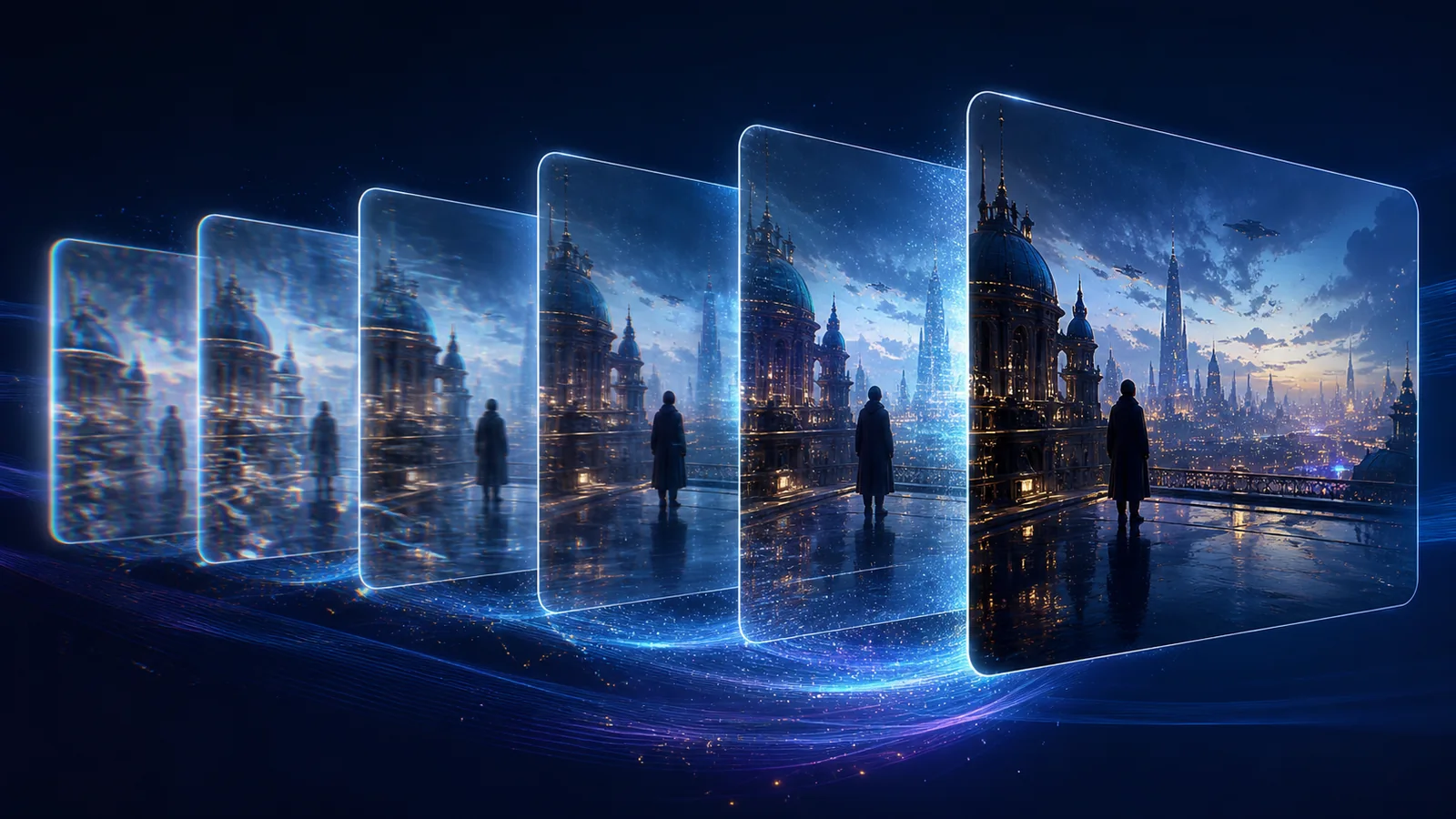
When you upscale AI-generated video to 4K, you are asking a restoration model to enlarge details that were already predicted by another model. That is different from upscaling clean camera footage. An AI clip may contain soft faces, crawling textures, unstable lettering, or objects that subtly change between frames. A careless upscale can make every one of those defects larger.
The right workflow is selective: finish the generation first, use the cleanest available export, test the most difficult motion, and inspect temporal consistency rather than judging one attractive still frame. This guide explains how to upscale AI-generated video to 4K while keeping the original composition, motion, and visual identity as stable as possible.
Quick answer: how do you upscale AI-generated video to 4K?
To upscale AI-generated video to 4K without making flicker worse:
- Choose the final generated take before upscaling.
- Export the least-compressed original clip.
- Check faces, hands, text, fine patterns, and fast motion.
- Upload a short representative test to a video restoration model.
- Compare 1080p, 2K, and 4K only when the source justifies them.
- Review the result in motion and at normal playback speed.
- Keep the original frame rate and avoid unnecessary re-encoding.
You can upscale AI-generated video to 4K and improve perceived clarity, but upscaling cannot reliably repair a character whose identity changes from frame to frame. Severe morphing, incorrect anatomy, missing objects, or broken motion should be fixed by regenerating or editing the source before the upscale.
Why AI-generated video needs a different upscaling workflow
Camera footage records a scene through a lens and sensor. AI-generated footage synthesizes each frame from learned patterns, prompts, references, and temporal constraints. Even when the clip looks convincing, its detail may not behave like captured detail.
Common AIGC defects include:
- fine textures that shimmer or crawl during motion;
- facial features that drift as the subject turns;
- hands and small objects that change shape;
- signs or interface text that mutates between frames;
- repeating patterns that slide across fabric or architecture;
- soft edges caused by low native resolution or platform compression;
- color gradients that show banding after export.
Increasing the pixel count does not automatically remove these problems. If you upscale AI-generated video to 4K frame by frame with an image-only tool, each frame may receive different invented details. The result can look sharp when paused but unstable during playback.
A video restoration model is better suited to this job because it can use information across time. The official SeedVR project describes support for real-world and AIGC restoration, while the SeedVR2 paper focuses on one-step, high-resolution video restoration. Temporal design does not guarantee a perfect result, but it gives the workflow a more appropriate foundation than processing unrelated still frames.
Inspect the generated clip before you upscale it
The quality of the final 4K file is limited by the take you choose. Do not spend restoration credits on every draft.
Lock the edit first
Trim unwanted heads and tails, select the winning take, and settle the sequence before you upscale AI-generated video to 4K. Upscaling discarded frames wastes processing and creates large files that slow the rest of the edit.
For a multi-shot project, keep each shot separate during testing. A quiet close-up and a fast camera move may need different output decisions even when they belong to the same final film.
Use the best original export
Download the original generated file whenever possible. Avoid screen recordings, social-media downloads, chat-app copies, and clips that have already been exported several times. Repeated compression introduces blocks, ringing, and color smearing that an upscaler may mistake for real texture.
If the generator offers more than one source quality, start from the highest-quality version rather than asking restoration to compensate for an avoidable low-quality export.
Find a stress-test section
Choose five to ten seconds that contain the hardest material in the clip:
- a face turning toward or away from the camera;
- hands interacting with an object;
- hair, grass, smoke, water, fabric, or foliage;
- a repeated geometric pattern;
- fast camera motion or a moving background;
- small lettering or signage.
This section tells you more than a calm establishing shot. If the difficult segment remains coherent, the rest of the clip is more likely to upscale safely.
Choose 1080p, 2K, or 4K based on the source
It is possible to upscale AI-generated video to 4K from a small source, but the largest target is not automatically the best-looking target.
| Source condition | First target to test | Main risk |
|---|---|---|
| Very soft or compressed clip below 720p | 720p or 1080p | Invented detail and larger compression blocks |
| Clean 720p generation | 1080p, then 2K or 4K | Texture crawl and artificial edges |
| Clean 1080p generation | 2K or 4K | Faces, lettering, and repeating patterns |
| Already sharp 2K clip | Keep 2K or test 4K | File growth with little visible gain |
For a vertical social clip, 1080p may already match the delivery platform. For a 4K editing timeline, projection, large display, or crop-heavy workflow, a 4K master can be useful. The output target should come from the final use, not from the assumption that a larger number always means a better image.
How to upscale AI-generated video to 4K with SeedVR2
The SeedVR2 online video upscaler supports browser-based restoration without a local GPU or ComfyUI installation. Use the following workflow for a controlled result.
1. Upload the original AI video
Open the restoration tool in video mode and upload the cleanest original file. The current workflow accepts common video formats including MP4, WebM, MOV, AVI, and MKV.
If you are comparing several generated takes, name them clearly before uploading. It is easy to confuse similar AIGC clips after they have been exported at several resolutions.
2. Start with a short representative clip
Before you upscale AI-generated video to 4K in full, process the stress-test section you identified earlier. A short test is faster to review and makes it practical to compare more than one target resolution.
Do not choose a section only because it looks clean. Include the face turn, texture motion, or complex camera move most likely to fail.
3. Choose the target resolution
The current tool offers 720p, 1080p, 2K, and 4K targets. Start conservatively when the source is heavily compressed or below 720p. With a clean 1080p generation, a direct 4K test is reasonable.
The interface estimates credit usage before processing. Higher output resolutions and longer clips require more work, so confirm the estimate before starting. The pricing page explains how resolution, media type, and duration affect usage.
4. Select an output format
MP4 is the safest general-purpose option for editing and publishing. MOV may fit some post-production workflows, while WebM can be useful for web delivery. GIF is available for short animation use cases, but it is not a good 4K master format because of its color and compression limitations.
Format choice does not repair unstable motion. It determines how the restored output is packaged and compressed.
5. Process and compare at equal viewing size
After restoration, compare the source and result at the same displayed size. A 4K image viewed larger will naturally reveal more defects than a small preview.
Check both paused frames and real-time playback. Look closely at:
- eye shape and facial identity;
- fingers and object boundaries;
- hair, fabric, foliage, and architecture;
- small text and symbols;
- reflections, smoke, fire, and water;
- the first and last frames of a camera move.
If the 4K output looks more artificial than the 1080p or 2K test, keep the lower target. The goal is a more useful video, not the largest file.
6. Export once and preserve the master
Keep the restored master separate from delivery copies. Make platform-specific exports from that master rather than repeatedly feeding compressed files back through the upscaler.
Once you successfully upscale AI-generated video to 4K, store the source prompt, original generation, restored master, and final edit together. That makes later revisions easier and preserves a clear record of what was generated versus restored.
How to prevent flicker during AI video upscaling
Flicker is not one defect. It can come from the original generator, from unstable restoration, from frame interpolation, or from compression. Identify where it begins before changing the workflow.
Do not upscale individual frames separately
Extracting every frame and passing it through an image upscaler can produce beautiful stills with unrelated microdetail. Hair strands, pores, bricks, and leaves may be generated differently in each image. When those frames are reassembled, the detail appears to boil.
Use a video-aware restoration workflow when you upscale AI-generated video to 4K so the model can consider temporal relationships.
Keep the original frame rate
Resolution upscaling and frame interpolation solve different problems. Changing a 24 or 30 fps generation to 60 fps adds another predictive step and another source of possible artifacts.
Keep the original frame rate during the first restoration test. If interpolation is required, evaluate it separately after you have a stable high-resolution master.
Avoid repeated restoration passes
Running a restored output through the same process again can strengthen invented texture and edge halos. It may also make small temporal differences more obvious. Return to the original generation and compare target resolutions rather than stacking several aggressive passes.
Regenerate severe source errors
Upscaling is not the right repair for a disappearing arm, changing identity, broken perspective, or object that transforms unintentionally. Those are generation problems. Re-roll the shot, revise the prompt or reference, or edit the defect before restoration.
What to do with faces, hands, text, and patterns
These four areas deserve special review whenever you upscale AI-generated video to 4K.
Faces
Compare the subject across several frames, not only the hero frame. If eye spacing, age, expression, or facial structure changes, a sharper result may still be less faithful. For identity-sensitive work, choose the lower target when it preserves the original character more consistently.
Hands
Upscaling can clarify existing finger boundaries, but it cannot guarantee correct anatomy when the source is already malformed. Watch the entire interaction with an object. A single clean frame can hide a shape change during motion.
Text and logos
Treat generated text as graphic content, not factual text. Restoration may sharpen letter-like forms without producing the intended word. Replace important titles, captions, packaging, and interface labels with real typography during editing.
Repeating patterns
Grids, windows, stripes, jewelry, and patterned clothing can develop crawling edges. Compare the 4K result at normal playback speed and at 100% zoom. If a pattern becomes unstable, a 2K output may look more convincing.
Common mistakes when you upscale AI-generated video to 4K
Upscaling every generation
Generate and select first. Restore only the clips that survive the edit.
Judging one still frame
The best paused frame does not reveal temporal shimmer. Always review motion.
Assuming 4K fixes composition or anatomy
Resolution cannot correct a bad camera move, broken hand, missing prop, or inconsistent subject. Fix the source problem first.
Adding heavy sharpening afterward
Extra sharpening can create halos around hair, faces, and architecture. Compare the restored result before applying more edge contrast.
Re-uploading a social-media copy
Platform compression can discard detail and add blockiness. Use the original generated export for restoration, then make the platform copy last.
A final quality-control checklist
Before approving the result, ask:
- Does the subject keep the same identity throughout the shot?
- Do hands and small objects remain structurally stable?
- Does fine texture stay attached to the moving surface?
- Do lines and architecture remain straight during camera motion?
- Is the result better during playback, not only when paused?
- Does 4K provide a visible advantage over the 2K test?
- Is the frame rate unchanged?
- Is this the least-compressed source and only restoration pass?
- Have you kept the original generation as a separate master?
If several answers are no, revise the source or choose a lower output target before processing the full project.
Frequently asked questions
Can I upscale AI-generated video to 4K without losing quality?
You can increase resolution without adding unnecessary compression, but no workflow guarantees lossless recovery. AI restoration predicts plausible high-resolution detail. The result should be judged against the original for identity, motion, and texture stability.
Will 4K upscaling remove flicker from AI video?
It may reduce some soft or inconsistent detail when a video-aware model uses temporal context, but it cannot reliably repair severe source flicker or morphing. If the instability is already obvious in the generation, fix or regenerate the clip first.
Should I upscale a 720p AI video directly to 4K?
Test 1080p and 2K as well. A clean 720p clip may benefit from 4K, but a compressed or unstable source can look more artificial after a large jump.
Is it better to upscale before or after editing?
Complete clip selection and basic trimming first, then restore the shots you will use. Perform final titles, captions, and delivery exports after upscaling so text remains real and platform compression happens only once.
Can SeedVR2 upscale videos from Sora, Kling, Veo, or other generators?
SeedVR2 accepts standard uploaded video files rather than depending on a particular generator. Export the cleanest MP4, MOV, WebM, AVI, or MKV available, then test a short section before processing the full clip.
Does upscaling fix incorrect AI-generated text?
No. It may make letter-like shapes sharper, but it cannot guarantee the intended spelling. Replace important text with proper typography in your editor.
Upscale one final AI clip before committing the whole project
The safest way to upscale AI-generated video to 4K is to test the hardest five to ten seconds, compare more than one target, and approve the result in motion. Start with the cleanest final generation in the online SeedVR2 video upscaler, then process the full shot only when the restored version is clearer and at least as stable as the source.
Related guides: