Fixing Diagonal Artifacts and Stripes in AI Upscaling
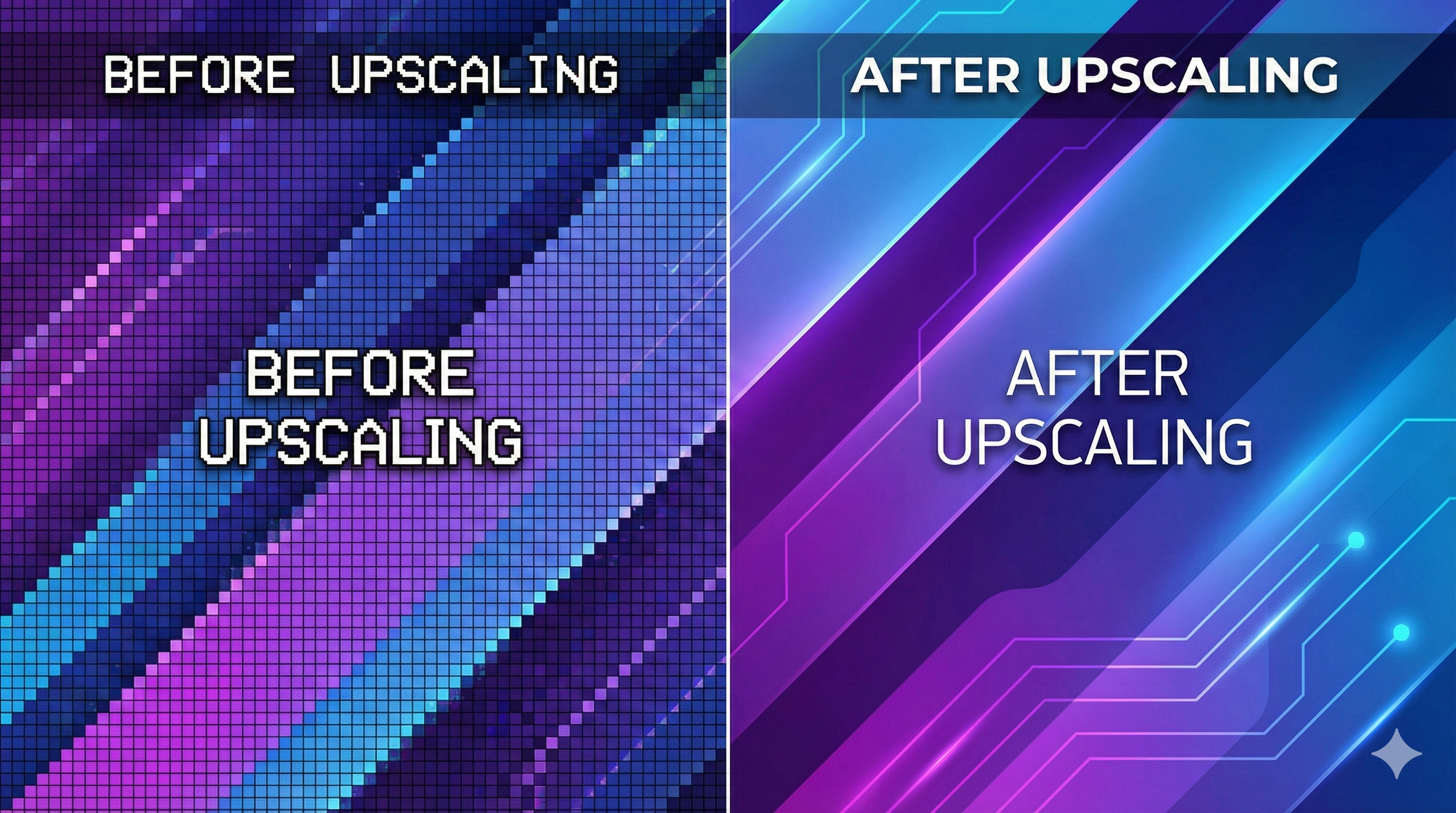
Have you ever upscaled an image only to find that diagonal lines look jagged, stripes appear broken, or fine textures turn into a blurry mess? You're experiencing one of the most common problems in AI upscaling: diagonal artifacts.
Traditional upscaling algorithms—even some early GAN-based models—struggle with certain patterns. But SeedVR2's generative approach solves this problem in a fundamentally different way.
The Common Issue: Why Diagonal Lines Break
When you upscale an image using traditional methods (bicubic interpolation, Lanczos, or even some neural networks), the algorithm tries to "guess" what pixels should look like at higher resolution by interpolating between existing pixels.
This works okay for smooth gradients and simple shapes. But it fails spectacularly for:
- Diagonal lines (stairs, railings, roof edges)
- Fine textures (fabric weaves, hair strands, grass)
- Repeating patterns (fences, grids, venetian blinds)
- High-contrast edges (text, architectural details)
What Causes the Artifacts?
The problem comes down to pixel grid alignment:
- Horizontal and vertical lines align perfectly with the pixel grid
- Diagonal lines cross multiple pixels at angles
- Interpolation algorithms can't accurately reconstruct the "in-between" pixels
- Result: jagged edges, stair-stepping, or complete loss of detail
Example artifacts you might see:
- Jagged diagonal lines that look like stairs
- Broken stripes that should be continuous
- Blurry textures where fine details should exist
- Color fringing along high-contrast edges
Why SeedVR2 Is Better for Texture Details
Here's where SeedVR2 changes the game. Instead of just interpolating pixels, it uses a generative diffusion model to reimagine and redraw the details.
The Technical Difference
Traditional Upscalers:
Low-res pixel → Mathematical interpolation → High-res pixelSeedVR2 (Generative Model):
Low-res image → Understand content → Generate plausible high-res detailsKey Advantages of SeedVR2's DiT Architecture
SeedVR2 is built on a Diffusion Transformer (DiT) architecture with 7 billion parameters. This means:
- Context awareness: The model understands what it's looking at (a fence, a face, a building)
- Pattern recognition: It knows how diagonal lines should look in real life
- Detail synthesis: Instead of guessing pixels, it generates realistic textures
- Consistency: It maintains coherence across the entire image
In simple terms: SeedVR2 doesn't just make your image bigger—it understands what should be there and draws it correctly.
Case Study: Before & After Comparison
Let's look at real examples where SeedVR2 excels at fixing diagonal artifacts:
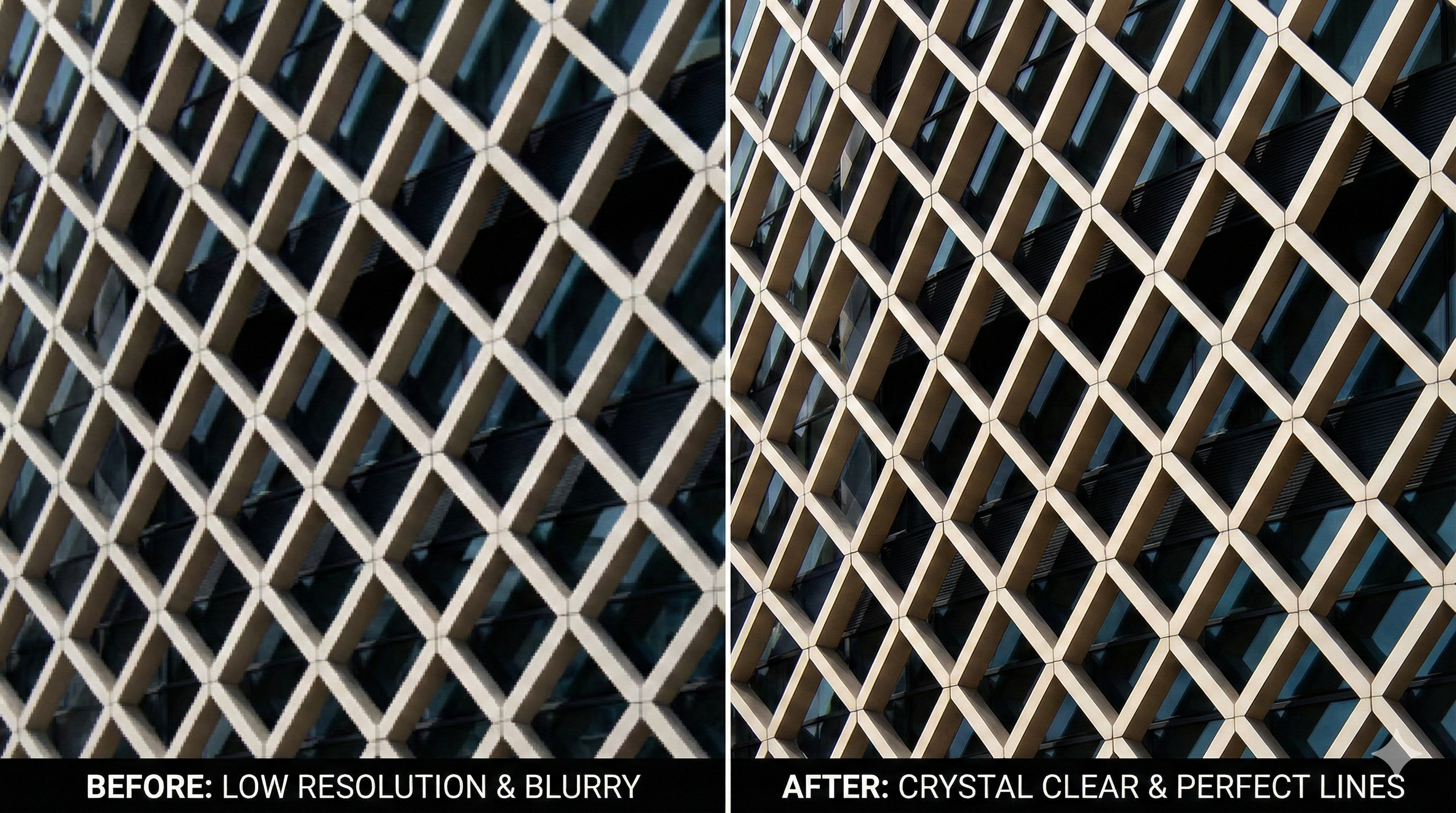
Example 1: Architectural Details
Original (Low-res):
- Blurry building facade
- Diagonal roof lines barely visible
- Window frames indistinct
After SeedVR2 Upscaling:
- Sharp, clean diagonal roof edges
- Window frames with clear definition
- Brick texture properly reconstructed
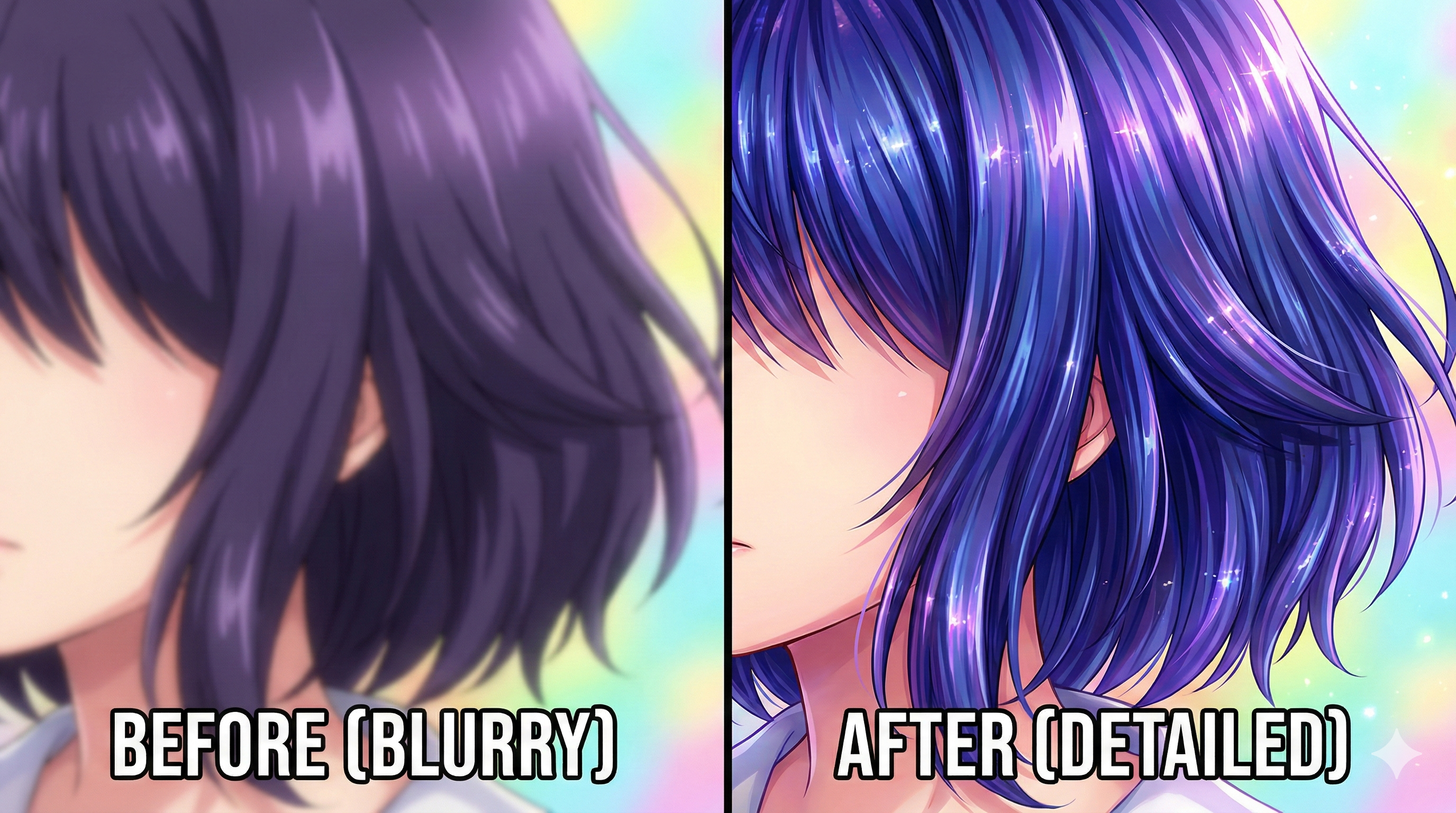
Example 2: Anime Character Hair
Original (Low-res):
- Hair strands merge together
- Diagonal bangs look jagged
- Fine details lost
After SeedVR2 Upscaling:
- Individual hair strands visible
- Smooth diagonal lines
- Natural-looking texture
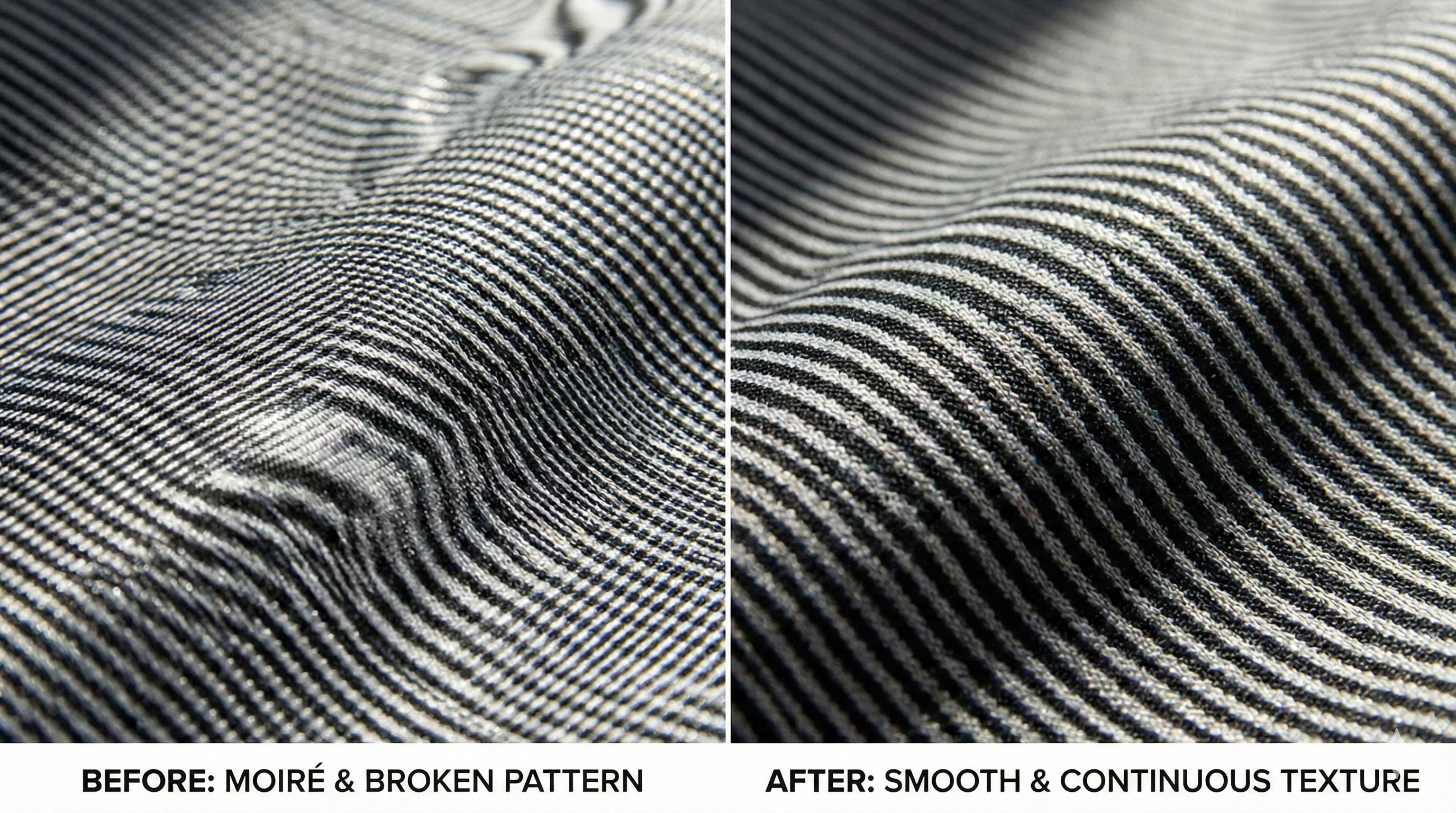
Example 3: Fabric and Clothing
Original (Low-res):
- Clothing patterns blurred
- Diagonal stripes broken
- Texture completely lost
After SeedVR2 Upscaling:
- Fabric weave visible
- Continuous diagonal stripes
- Realistic textile appearance
How to Achieve This Result with SeedVR2 Online
Getting these professional results is surprisingly simple with our platform:
Step 1: Upload Your Image
Navigate to our Image Upscaler tool and upload your image:
- Supported formats: JPG, PNG, WebP, HEIC, BMP
- Drag and drop or click to browse
Step 2: Choose Upscale Factor
Select your desired output resolution:
- 2x upscaling: Best for moderate quality improvement
- 4x upscaling: For maximum detail enhancement
Step 3: Process and Download
Click "Start Processing" and watch the magic happen:
- Processing time: 10-30 seconds for most images
- Download your enhanced image instantly
Real-World Use Cases
For Photographers
Problem: Old scanned photos with diagonal artifacts from the scanning process.
Solution: SeedVR2 removes scan lines and reconstructs fine details, making vintage photos print-ready.
For Anime Fans
Problem: Upscaling old anime screenshots results in jagged character outlines.
Solution: SeedVR2's anime mode preserves the art style while smoothing diagonal lines and adding detail.
For Architects and Designers
Problem: Low-resolution reference images with important diagonal structural elements.
Solution: SeedVR2 accurately reconstructs building edges, roof lines, and architectural details.
For E-commerce
Problem: Product photos with fabric textures that look blurry when enlarged.
Solution: SeedVR2 regenerates realistic textile patterns, making products look professional at any size.
Technical Tips for Best Results
1. Start with the Highest Quality Source
While SeedVR2 can work miracles, it works best when:
- Original image is at least 512px on the shortest side
- Image has minimal compression artifacts (use PNG if possible)
- Lighting is reasonably good in the original
2. Use Appropriate Upscale Factors
- 2x upscaling: Best for images that are already decent quality
- 4x upscaling: For very low-resolution sources
- Custom resolution: When you need specific dimensions for print
3. Experiment with Denoising
If your original image has:
- JPEG compression artifacts → Set denoising to 0.3-0.5
- Film grain or noise → Set denoising to 0.5-0.7
- Clean digital image → Keep denoising at 0.1-0.2
4. Compare Different Modes
Not sure which mode to use? Process the same image in multiple modes and compare:
- Photo mode tends to add realistic texture
- Anime mode preserves flat colors and sharp edges
- Art mode adds painterly details
Comparison: SeedVR2 vs. Other Upscalers
| Feature | Traditional Upscalers | GAN-based (ESRGAN) | SeedVR2 |
|---|---|---|---|
| Diagonal Line Quality | Poor (jagged) | Fair (some artifacts) | Excellent (smooth) |
| Texture Reconstruction | None (blurry) | Good (can hallucinate) | Excellent (realistic) |
| Pattern Consistency | Poor | Fair | Excellent |
| Processing Speed | Fast (seconds) | Medium (minutes) | Fast (10-30 seconds) |
| VRAM Required (Local) | Minimal | 4-8GB | 12-24GB |
| Cloud Processing | N/A | Limited | Available (SeedVR2 Online) |
Frequently Asked Questions
Q: Will SeedVR2 "invent" details that weren't in the original?
A: Yes, but in a good way. The model generates plausible details based on what it has learned from millions of high-quality images. It doesn't add random noise—it adds realistic texture.
Q: Can I use this for commercial projects?
A: Yes! Pro and Business plans include commercial usage rights. Perfect for client work, product photography, and professional printing.
Q: What if I don't like the generated details?
A: You can adjust the "creativity" slider to control how much the AI adds. Lower values stay closer to the original, higher values add more detail.
Q: Does it work on black and white images?
A: Absolutely! SeedVR2 handles grayscale images beautifully, preserving tonal gradients while adding detail.
Q: Can I batch process multiple images?
A: Yes! Pro and Business plans include batch processing. Upload up to 100 images at once.
Ready to Fix Your Diagonal Artifacts?
Stop settling for jagged lines and blurry textures. Experience the difference that generative AI upscaling makes.
Upload Your Tricky Images Now (Free Trial) →
No credit card required. See the results in seconds.
Related Articles: